Momo

Introduction to Git & GitHub: Your First Steps into Version Control
Whether you're building your first website, collaborating on a team, or contributing to open source — Git and GitHub are tools every developer should know. This guide will walk you through the essentials to get up and running.
What’s the Difference?
Git is a version control system. It helps you track changes to your code, revert to previous versions, and work on features without affecting your main project.
GitHub is a platform for hosting and collaborating on Git repositories. It lets you share your work, contribute to others’ code, and maintain a professional portfolio of your projects.
Setting Up Git
First, install Git from git-scm.com and configure your identity:
git config --global user.name "Your Name"
git config --global user.email "your@email.com"
This ensures your commits are linked to your name and email address.
Starting a Project with Git
Navigate to your project folder and initialize Git:
git initThis creates a hidden .git directory where Git will track your project’s changes.
Next, stage your files and commit the first version:
git add .
git commit -m "Initial commit"
git add . stages all changes, and git commit saves a snapshot with your message.
Connecting to GitHub
Create a new repository on GitHub (leave it empty), then link your local repo and push your code:
git remote add origin https://github.com/yourusername/your-repo.git
git branch -M main
git push -u origin main
Your project is now live on GitHub.
Everyday Git Commands
Here are some commands you’ll use daily:
| Command | What it does |
|---|---|
git status | See current changes and staging info |
git log | View your commit history |
git diff | See what has changed before committing |
git pull | Sync with GitHub |
git push | Upload changes to GitHub |
git clone <url> | Copy a GitHub repo to your machine |
Branching & Collaboration
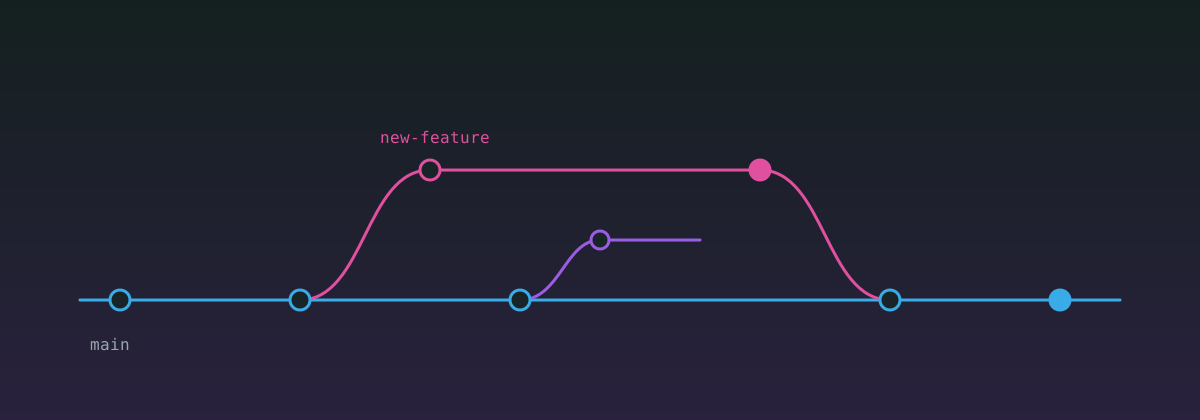
When working on a new feature, use branches to keep things isolated:
git checkout -b new-feature
# make your changes
git add .
git commit -m "Add new feature"
git push origin new-feature
Then, open a Pull Request (PR) on GitHub to propose your changes and merge them after review.
Wrap-Up
With these few commands, you can:
- Track your code changes locally
- Work with others on the same project
- Back up and showcase your code on GitHub
What’s Next?
- Learn how to use
.gitignoreto exclude files - Explore how to resolve merge conflicts
- Contribute to open-source projects
Want to take it further? Try using Git with VS Code, add SSH for GitHub, or dive into GitHub Actions for automation.